Outputs and sharing
Export
Open the Export subtab in the Scanpath view.
- Current figure downloads what is on screen: PNG (at a print width and DPI, if you give one), SVG, PDF or HTML, or the replay as HTML, GIF or MP4.
- Export bundle writes figures and tables for this trial, the filtered
trials, or the whole dataset, plus a
plot_config.jsonrecording the main settings they were drawn with (the full set is Share → File). On a dataset whose trials span several screens, Screens narrows it to the ones you pick, such as only the reading pages; leave it empty for all. Options add separable layers for a vector editor, raw gaze, annotations, and more tables. Tables are written per trial, or combined into one file each. Word tables carry the reading measures your data brought; the export computes none. Each bundle has anindex.csvlisting every file with its participant, trial and screen, and any requested file that failed. The tables use your files' column names (CURRENT_FIX_DURATION, notduration_ms). A column Scanpath Studio built, converted, computed or changed keeps the app's name. For example, word ids shifted to line up with the word boxes are written asword_id. The bundle's README says where each column came from, and itscolumns.jsonmaps every column to the app's name, for scripts that work across datasets. File-name, title and caption patterns accept either name:{RECORDING_SESSION_LABEL}and{participant_id}both work.
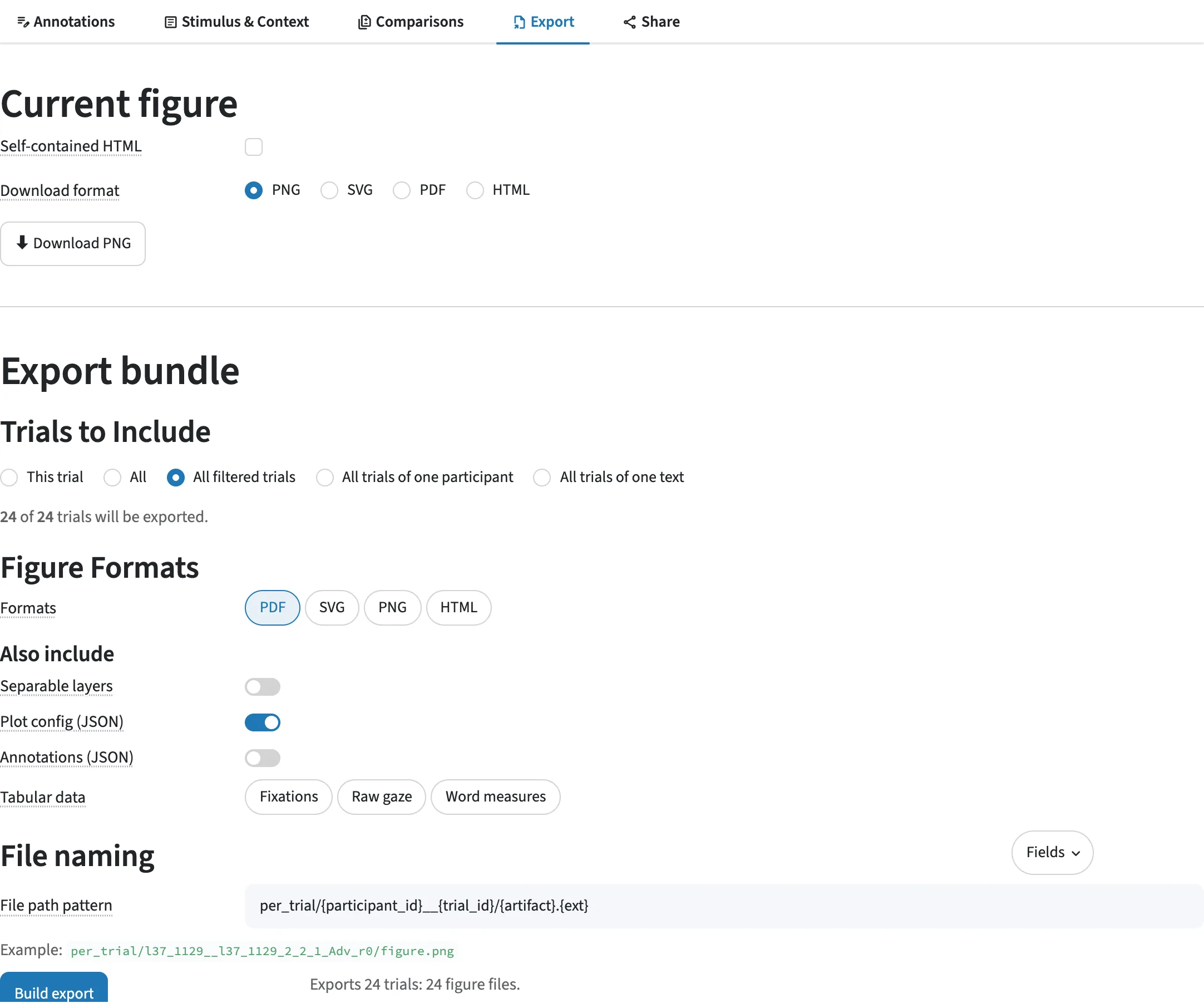
HTML, and the current figure's PNG and SVG, always work. An HTML file from the app loads the Plotly library from the internet when opened, unless you tick Self-contained HTML: then it carries the library (about 4.8 MB more) and opens offline. One written by the Python API or the CLI always embeds it. PDF, GIF, MP4 and the bundle's images need Chrome, Chromium or Edge installed (FAQ); the bundle says so when none is found. Before a build it says how many trials, screens and figure files it will write; Stop ends a long build before the next screen, and a stopped build offers no bundle. After a build it reports how many files and figures it made and how many failed, and a partly built bundle still downloads.
Share
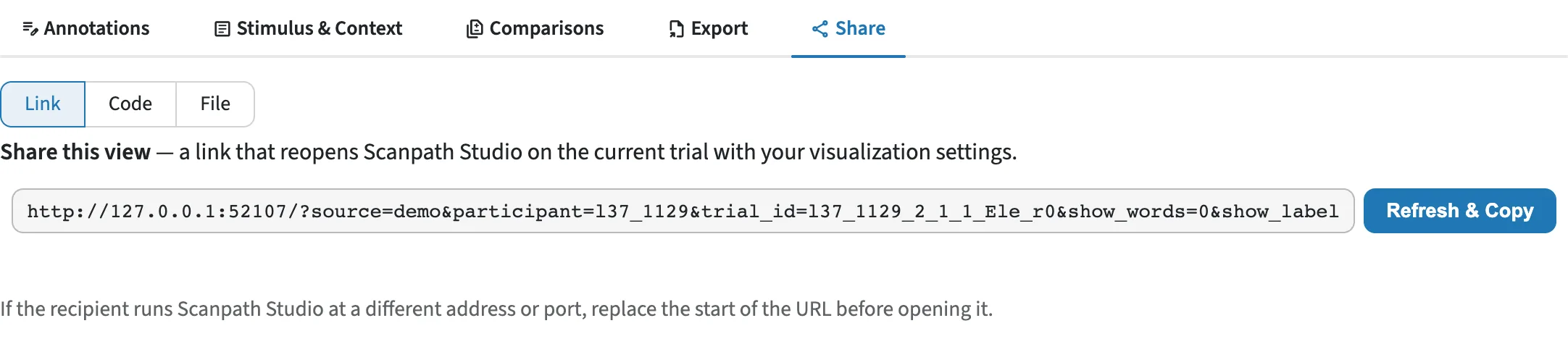
The Share subtab passes a view on in three ways:
- Link — a URL with the dataset choice, trial and every figure setting. It never contains your uploaded data: the link names a dataset you added, and the recipient adds the same files (send them with its setup file, from Edit dataset → Download setup file). A recipient without that dataset is told which one the link needs, and the view is not applied to another. (A scanpath created by hand is the exception; its link carries it.)
- Code — Python or a CLI command that reproduces the figure.
- File — the figure's settings as a file, to restore later: its mode (static, animated or a comparison) and, for a comparison, which trial it was compared with and on which screen.
Back up your work
| What | Where |
|---|---|
| figure settings | Share → File |
| favorites, tags and notes | Data Management → Annotations → Export |
| column mapping and recording setup | Edit dataset → Download setup file |
| saved figure designs | My designs → Export |
| an authored scanpath (text, layout and fixations) | Author a scanpath → Download authoring file |
None of these files contain your data rows; load the same data before restoring
one. The authoring file is the exception: it is the whole authored scanpath, and
Restore authoring file on the same screen loads it back, as do
load_authored_scanpath and scanpath-studio render --authoring. Notes may contain participant information, so check them before sharing.
On a local or desktop install, the app also keeps your datasets and work Saved on this computer, restored after a refresh or restart.
For scripted output, see Automation.